HubSpot lifecycle stages show where a contact or company sits in your marketing and sales process. Before you automate them, give each stage one entry rule, one owner, and one method of update. Then check HubSpot's built-in settings, because they can change stages without a workflow. Finally, test with sample records.
Picture a demo request that lands in your CRM tagged as Subscriber. Nobody built a rule to do that. A default did, and your funnel report now starts with a wrong answer.
What are HubSpot lifecycle stages?
A lifecycle stage is a HubSpot property that records how far a contact or company has moved in your process, which gives marketing and sales a shared view of each handoff.
HubSpot's lifecycle stage documentation lists eight defaults in this order:
| Stage | What HubSpot means by it |
|---|---|
| Subscriber | Opted in to hear from you, such as a newsletter signup |
| Lead | Converted beyond a subscription |
| Marketing Qualified Lead (MQL) | Qualified by marketing for sales |
| Sales Qualified Lead (SQL) | Qualified by sales as a potential customer |
| Opportunity | Associated with a deal |
| Customer | Has at least one closed deal |
| Evangelist | A customer who has advocated for you |
| Other | Fits none of the above |
You can customize these or add your own. However, you need Super Admin permissions to create or edit stages. Add a stage only if someone will act differently because a record is in it.
Lifecycle stage vs lead status vs deal stage
Each field answers a different question, so don't use one to do another's job.
| Field | Question it answers | Example |
|---|---|---|
| Lifecycle stage | How far has this relationship come? | SQL |
| Lead status | What is sales doing within qualification? | Attempted to Contact |
| Deal stage | Where is this specific sale? | A step in your deal pipeline |
HubSpot treats Lead Status as the place for sub-stages within SQL. Its default options include New, In Progress, Connected, Unqualified, and Bad Timing.
Write the stage rules first
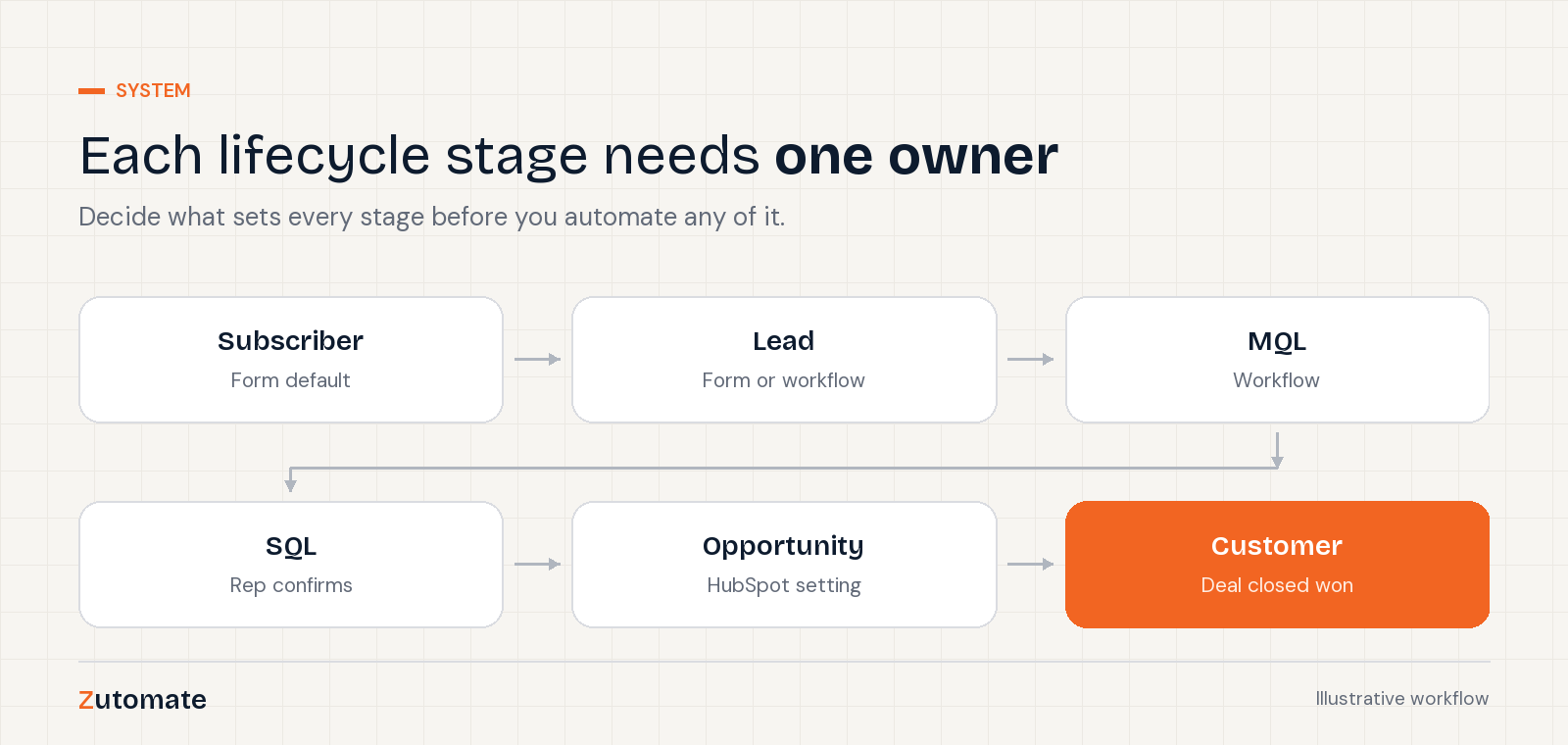
Every stage needs a rule that two people would apply the same way. If sales and marketing can't agree on a record, the rule isn't ready for a workflow.
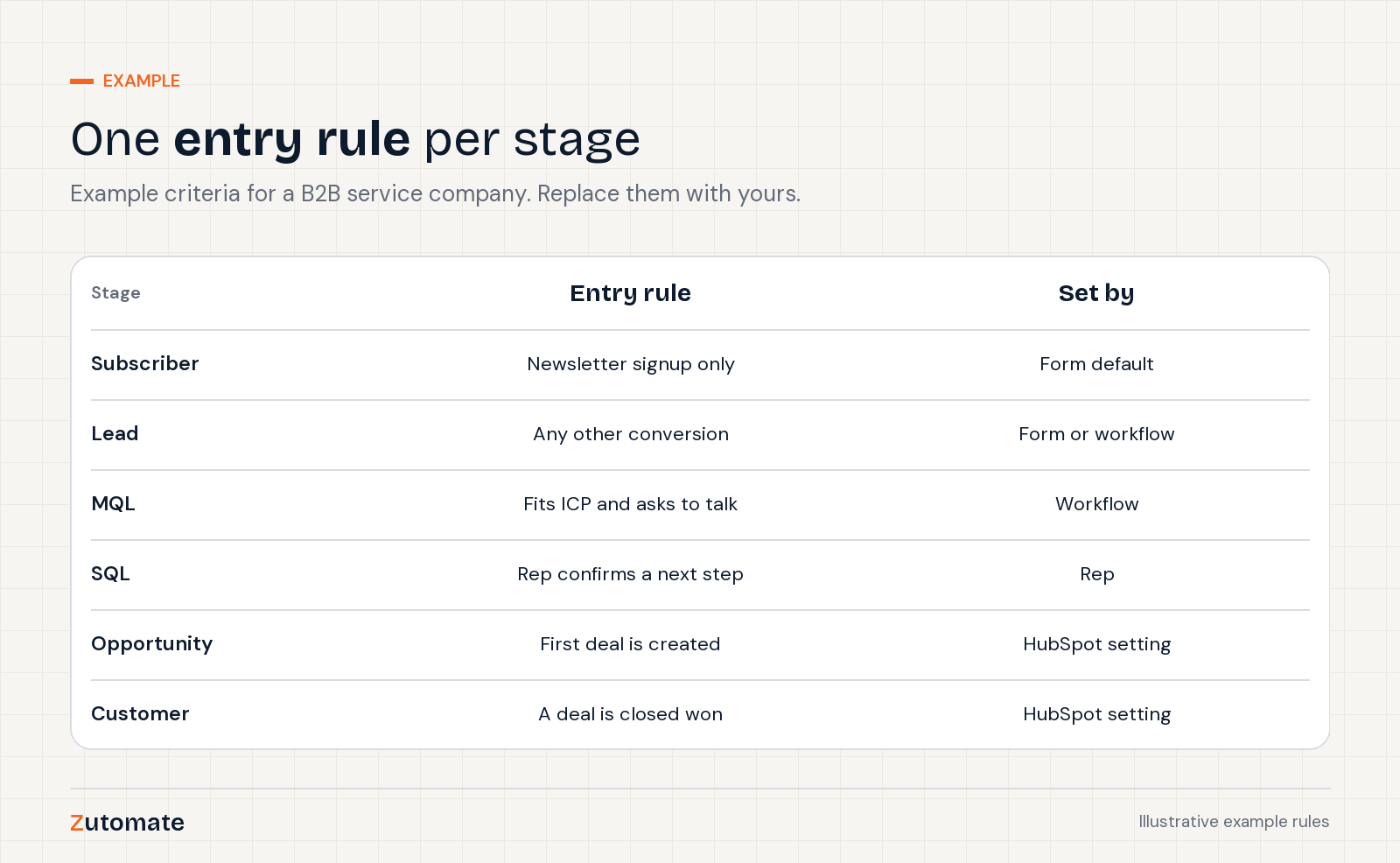
Here is a starting sheet for a B2B service company. The criteria are examples, so replace them with yours.
| Stage | Entry rule (example) | Set by | Rule owner |
|---|---|---|---|
| Subscriber | Newsletter signup only | Form default | Marketing |
| Lead | Any other form or content conversion | Form default or workflow | Marketing |
| MQL | Fits your ideal customer profile (ICP) and asks to talk | Workflow | Marketing |
| SQL | A rep confirms the need and a next step | Rep | Sales |
| Opportunity | First deal is created | HubSpot setting | Sales |
| Customer | A deal is closed won | HubSpot setting | Sales |
| Evangelist | A documented referral or public review | Manual | Account owner |
| Other | Partner, vendor, or another named exception | Manual | RevOps |
Notice the "Set by" column. Our advice is to pick one primary method for each stage. When a form, a workflow, and an import all write the same value, tracing a bad record gets much harder.
Check the settings that move stages for you
HubSpot can set and sync lifecycle stages from its object settings, so review these before you build anything. According to the automation settings guide, you'll find them under Settings > Data Management > Objects. Select Contacts, then open the Lifecycle Stage tab.
| Setting | What it does | What to check |
|---|---|---|
| Stage on record creation | Gives new contacts and companies a default stage | Does the default fit every source? |
| Deal created | Updates associated records on their first deal | Is the value Opportunity, or what your sheet says? |
| Deal won | Updates associated records on closed won | Is the value Customer? |
| Lead associated | Updates records when a lead is associated | Does it clash with your MQL or SQL rule? |
| Sync lifecycle stages | Copies the primary company's stage to its contacts | Should every contact inherit it? |
The form default to check first
A form's own default stage matters because it can override your account default. If the record creation setting is off, form submissions get the first stage in display order, unless the form sets one.
With the default order, that first stage is Subscriber. Therefore, open your demo and contact forms and check the stage each one assigns.
Two more traps
Company sync runs in one direction. A company's stage can update its contacts, but a contact's change doesn't update the company. It also won't move a contact backward.
Meanwhile, the deal won setting affects more than the stage. When it's off, HubSpot doesn't auto-update Close date and Days to close on associated contacts and companies.
Using Salesforce too? Check the integration's lifecycle settings as well, so you know which system can change the value.
Build the MQL workflow
An MQL workflow should check fit, intent, and the current stage before it writes anything. HubSpot requires Professional or Enterprise to set a lifecycle stage with a workflow's property action.
Use this logic as a template:
- Enroll contacts who submit a demo or contact form.
- Check the stage. Continue only if it's blank, Subscriber, or Lead.
- Exclude competitors, job seekers, vendors, and internal addresses.
- Check fit using properties you trust, such as company size, industry, or country.
- If fit passes, set the lifecycle stage to Marketing Qualified Lead.
- When fit data is missing, send the record to a review queue.
- If fit fails, keep the current stage and record the reason in a custom property.
- Hand off by assigning an owner and creating a follow-up task.
Step 6 deserves attention. A blank company size doesn't prove a poor fit. It only means you don't know yet, so a person or an enrichment step should look.
For step 8, keep ownership logic in one place. Our HubSpot lead routing audit checklist helps you test who gets each record.
How do you move a lifecycle stage backward?
You must clear the lifecycle stage before a HubSpot tool can set an earlier value. This applies to imports, form submissions, the API, the Salesforce integration, and workflows.
In a workflow, HubSpot's bulk update instructions use two actions:
- Add an Edit record action for Lifecycle Stage and select Clear existing property value.
- Add a second Edit record action that sets the earlier stage.
This workflow needs Professional or Enterprise. For an import, clear the existing values first, then import the new ones.
What happens to the date properties?
Backward moves can leave different results in old and new date fields. HubSpot calls the Became a [stage] date properties legacy. Its calculated properties include Date entered [stage] and Date exited [stage].
- A manual move to an earlier stage clears the legacy date for the later stage.
- Clearing the value alone leaves the legacy date for the most recent stage.
- Calculated properties aren't cleared by a backward move.
So check which date field each report uses. Also run one test record through your clear-and-set workflow before any bulk change.
Should you move it back at all?
Usually, we'd keep the stage and record the setback somewhere else. For example, an SQL with bad timing can keep its stage while Lead Status changes to Bad Timing.
Save backward moves for records that reached a stage by mistake, such as a bad import. If your process calls for recycling leads, write that rule down. Include who can trigger it and how reports should count it.
Find records that are stuck
To find stale records, don't rely only on time-in-stage fields. Latest time in [stage] has no value while a record is still in that stage, unless it was there before. Cumulative time in [stage] follows the same rule. Both need Professional or Enterprise.
For workflow enrollment, HubSpot's documentation points to two filters used together:
- Lifecycle stage is any of the stage you're checking
- Lifecycle stage not updated in the last X days
Choose X from your own sales cycle. For instance, you might review MQLs sooner than Opportunities. Then create a task for the rule owner instead of changing the stage automatically.
Test before you turn it on
Test records show whether your settings and workflows agree with your rule sheet. Use test contacts and companies, and check the property history to see what made each change.
| Test | Expected result (using the sheet above) | Pass? |
|---|---|---|
| Newsletter signup | Subscriber | |
| Demo request, good fit | MQL, owner assigned, task created | |
| Demo request, missing company size | Stage kept, sent to review | |
| Existing customer fills in a form | Stays Customer | |
| First deal on a Lead | Opportunity | |
| New deal on a Customer | Stays Customer | |
| Deal closed won | Customer, close date filled | |
| Company stage changes with sync on | Eligible contacts move forward only |
Run these again after you edit a form, workflow, integration, or lifecycle setting.
Where lifecycle automation breaks
Most fixes start with finding which tool wrote the value. Property history is your first stop.
| Symptom | Check first |
|---|---|
| Demo requests show as Subscriber | The form's default stage and the creation setting |
| A workflow can't set an earlier stage | Whether it clears the value first |
| Contacts jump ahead unexpectedly | Company sync and deal settings |
| Contact changed but company didn't | Expected with company-to-contact sync |
| Close date is blank on a contact | The deal won setting |
| Funnel counts disagree between reports | Which date property each report uses |
Clean stages are one part of the wider CRM build. Our HubSpot RevOps playbook shows where they fit alongside data, automation, and reporting. In our GOSO case study, an outbound and RevOps system generated $85K in pipeline in 3 months. That result covers the whole system, not lifecycle stages alone, and results depend on your market, offer, and data.
HubSpot lifecycle stage rules at a glance
These platform rules are current as of November 2026. Plans and settings can change, so confirm them in your own account.
| Rule | Detail | Source |
|---|---|---|
| Availability | Lifecycle stages are on all plans, with some features limited | Use lifecycle stages |
| Workflow updates | Professional or Enterprise | Use lifecycle stages |
| Time-in-stage properties | Latest and cumulative time need Professional or Enterprise | Use lifecycle stages |
| Editing stages | Super Admin required | Create and customize stages |
| Built-in settings | They don't move stages backward | Set and sync stages |
Key Takeaways
- Each HubSpot lifecycle stage should have a written entry rule, a rule owner, and a primary update method.
- If HubSpot's record creation stage setting is off, a form submission gets the first stage in display order unless the form sets a default.
- HubSpot tools such as workflows and imports must clear a lifecycle stage before setting an earlier one.
- HubSpot's company lifecycle sync updates contacts from their primary company, not the company from its contacts.
- Test records should cover forms, deals, existing customers, missing data, and company sync before lifecycle automation goes live.
Frequently Asked Questions
What are the default lifecycle stages in HubSpot?
The eight defaults are Subscriber, Lead, Marketing Qualified Lead, Sales Qualified Lead, Opportunity, Customer, Evangelist, and Other. You can customize them or create your own.
What is the difference between lifecycle stage and lead status in HubSpot?
Lifecycle stage shows how far a contact or company has come in your process. Lead status adds detail about sales activity, and HubSpot uses it for sub-stages within Sales Qualified Lead.
Can HubSpot lifecycle stages move backward?
Yes, but HubSpot tools such as workflows, imports, and the API must clear the current value before setting an earlier one. Automatic updates only move stages forward.
How do lifecycle stages update automatically?
HubSpot can set them from record creation, deal creation, closed-won deals, lead association, and company sync. Workflows can also set them on Professional and Enterprise plans.
Want this built and maintained for you? Book your strategy call.