Build HubSpot lead routing in four gates, in this order: existing owner, segment rules, round robin, then a fallback owner. A lead only moves to the next gate if the one before it didn't catch it. Most misrouted leads come from skipping the first gate or the last one.
Picture a demo request from a company your best AE has worked for six months. It lands in the round robin and goes to a rep who has never heard of the account. Two reps email the same buyer in one week. Nobody did anything wrong. The rule order did.
The four-gate routing order is a way to sequence HubSpot assignment rules so each lead meets the most specific rule first: an existing owner check, then segment rules, then a rotation for what's left. A named fallback owner sits at the end and catches anything that fails.
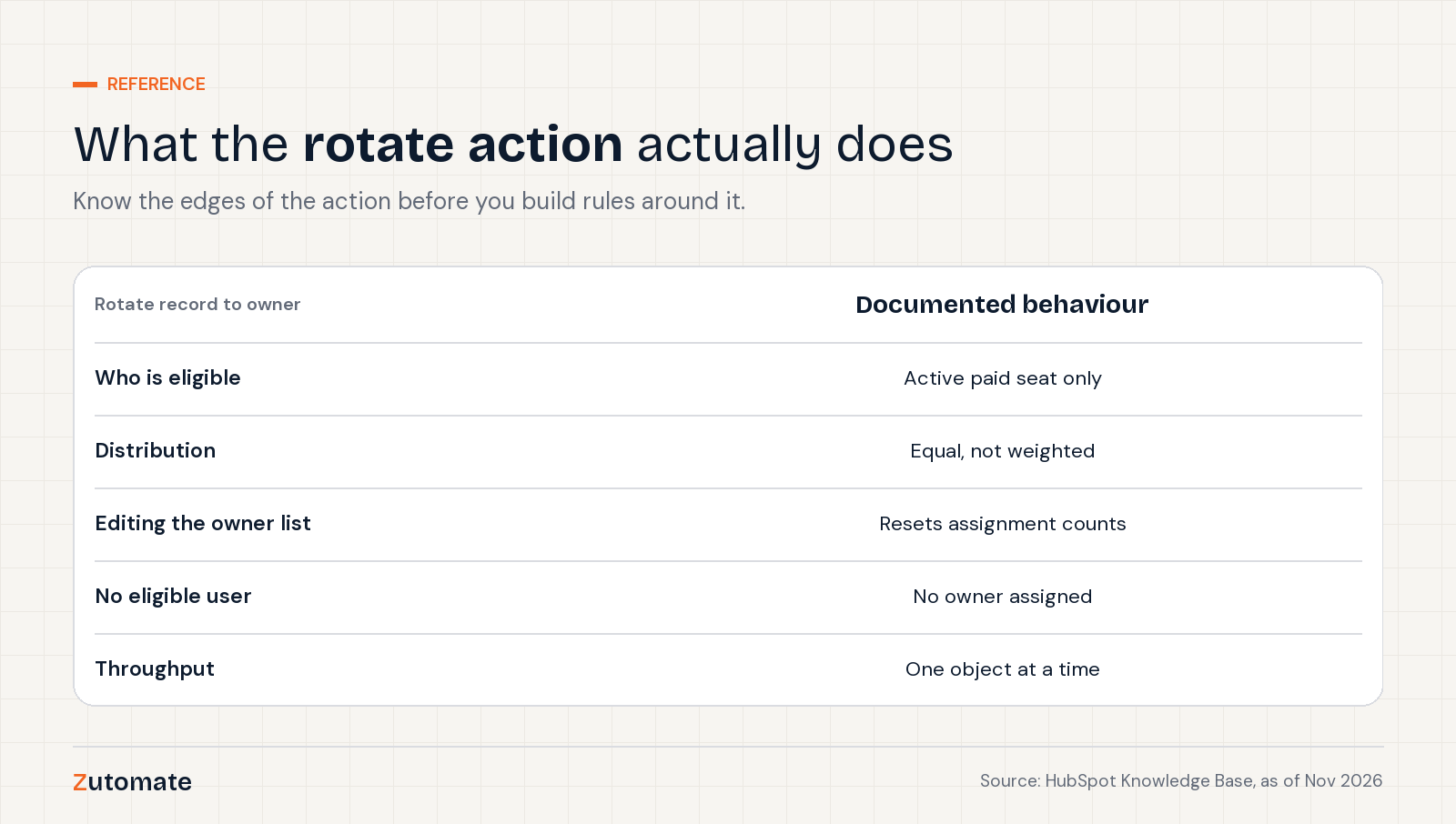
What does HubSpot's rotate action actually do?
HubSpot's Rotate record to owner action assigns records to paid sales or service users, equally by default, and assigns no owner at all when nobody eligible is available.
Knowing the edges of that action decides where your own rules have to fill in. Here is what HubSpot's documentation says, as of November 2026 (the article was last updated October 19, 2026):
| Behavior | What HubSpot's docs say | Why it matters for routing |
|---|---|---|
| Who is eligible | Users need an active Sales or Service Hub Professional or Enterprise seat. Deactivated users are excluded. | A rep who loses a seat quietly drops out of the pool. |
| Distribution | Records are assigned equally among the selected users or team members. | Equal, not weighted. Check your portal before promising percentages. |
| Editing the list | Adding or removing owners resets the assignment counts. | Rotation balances from the edit forward, not across the quarter. |
| No eligible user | No owner is assigned. | A lead can sit with a blank owner and no error. |
| Throughput | One object rotates at a time. Others retry, so they can move more slowly. | A burst of form fills queues up inside the action. |
| Lead objects (beta) | Adds load balanced, round robin and random, an available-users-only option, and a fallback owner. | The fallback exists for leads. Use it. |
| Salesforce owner sync | If HubSpot owner syncs to Salesforce, the action may not work as expected. | Check the sync before you blame the workflow. |
Source: HubSpot Knowledge Base, assign and rotate record owners using workflows. Treat these as reference points. HubSpot changes this behavior, so re-check before you build.
One more thing. A vendor guide we read says HubSpot supports weighted rotation with percentages per rep. HubSpot's own documentation lists equal, load balanced, round robin and random, and a community idea thread describes uneven distribution as planned. We'd trust the documentation, and test in your own portal.
What are the four gates of HubSpot lead routing?
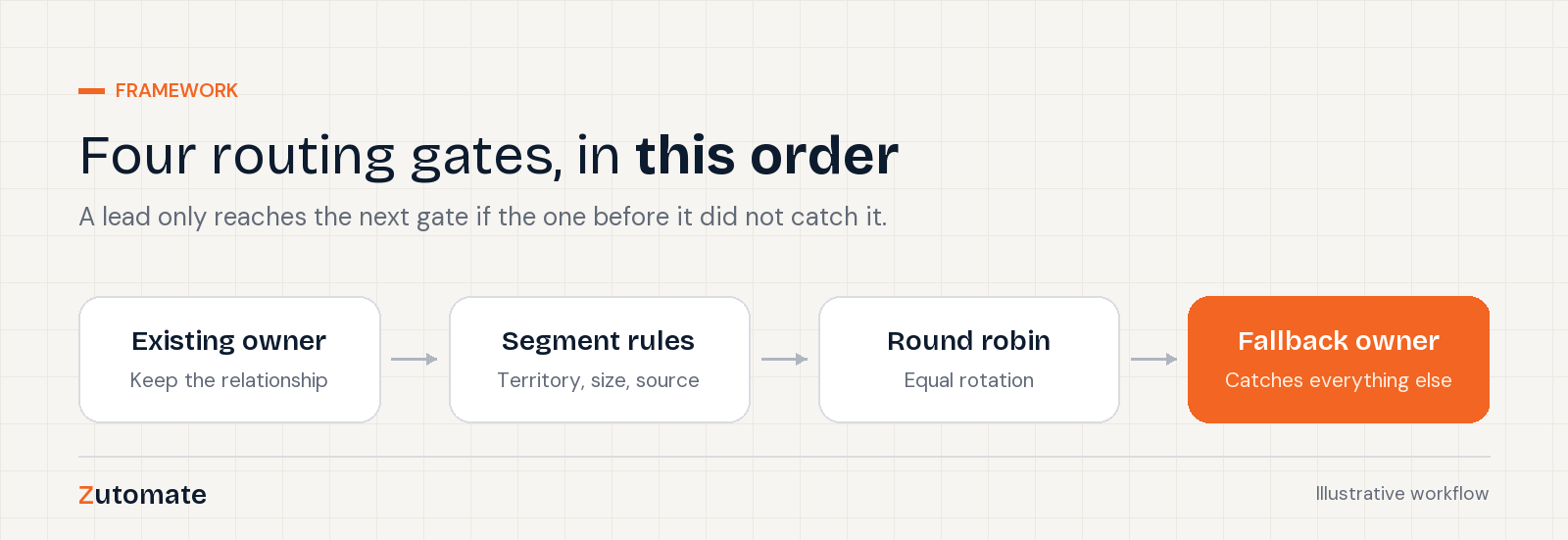
Each gate asks one question, and a lead leaves the process at the first gate that answers yes.
| Gate | Question | HubSpot mechanism | If it fails |
|---|---|---|---|
| 1. Owner | Does this company or contact already have an owner? | Branch on company owner or contact owner | Falls to Gate 2 |
| 2. Segment | Does it match a named account, territory or size rule? | If/then branches on company properties or an active list | Falls to Gate 3 |
| 3. Rotate | Who is next in line? | Rotate record to owner | Falls to Gate 4 |
| 4. Rescue | Is the owner still unknown after the wait? | Final branch that assigns a named fallback user and notifies them | Never ends blank |
How do you build the four gates in HubSpot?
Build them in six steps, in order, and test each gate before you add the next. We set up routing like this as part of our HubSpot RevOps service.
Step 1: Decide who is eligible and which property holds the owner
List the reps who should receive leads, and confirm each has a paid Sales Hub seat. Pick the owner property the workflow writes to. The default is the record's owner property, but the action also works with custom user properties.
Step 2: Build Gate 1, the existing owner check
Enroll new contacts, then branch first on whether the associated company already has an owner. If it does, assign the contact to that owner and stop.
This gate has a timing trap. A new contact may not be associated to its company yet when the workflow starts. One HubSpot community answer suggests turning on ownership sync between contacts and companies, and adding a one to two minute delay before the rotation so the sync can land first. That thread is a community answer, not documentation, so test it on a few records.
Step 3: Build Gate 2, the segment rules
Add if/then branches for the cases a rotation shouldn't touch. Named accounts, a territory by country, or accounts above a size threshold in numberofemployees are common ones. For a named account list, use an active list of companies and branch on membership.
Keep these rules few. Every branch you add is one more place a lead can disappear.
Step 4: Build Gate 3, the rotation
Add Rotate record to owner for the leads that reach this point. Choose the specific users or the team. Set the overwrite option so the action doesn't replace an owner a rep already holds.
Step 5: Build Gate 4, the rescue
Add a final wait, then a branch that checks whether the owner is still unknown. If it is, assign a named fallback user and send them an internal notification. HubSpot's own documentation strongly recommends a fallback option for lead assignment, because without one tasks and notifications go unaddressed.
Step 6: Log which gate fired
Create a custom property, say routing_gate, and set it to Owner, Segment, Rotate or Rescue as each branch fires. When someone asks why a lead went to a rep, you can answer in one filter.
How do you test the routing before it goes live?
Run test records through every gate, including the unhappy paths. Rule changes in a live workflow affect real leads immediately.
| Test record | What it checks | Pass looks like |
|---|---|---|
| Contact at a company that already has an owner | Gate 1 | Assigned to the company owner, no rotation |
| Net-new small company | Gate 3 | Rotated to the next eligible rep |
| Net-new company on your named account list | Gate 2 | Assigned to the named owner, not rotated |
| Contact with no company domain | Gate 1 timing | Reaches Gate 3 or 4, never stays blank |
| Rotation pool where every rep is away or unseated | Gate 4 | Fallback owner assigned and notified |
| Ten form fills in one minute | Throughput | All assigned, with the delay you can live with |
The fourth and fifth rows are the ones teams skip. They're also where leads quietly go missing.
Where does HubSpot lead routing break?
It breaks in five predictable places.
Duplicate companies. Gate 1 reads the company's owner. If a duplicate company with no owner exists, the lead looks net-new and gets rotated. Clean up your company duplicates first: the lookup-first build that stops Clay HubSpot duplicates.
Edited rotation lists. Adding or removing a rep resets the counts, so the rotation is even from that point on, not across the quarter. Don't promise a rep a fixed share.
Seats and deactivations. A rep who loses a paid seat drops out of assignment. If the whole pool drops out, the lead gets no owner.
The Salesforce owner sync. HubSpot warns the rotate action may not behave if owner syncs to Salesforce. Check this before you debug the logic.
Burst traffic. Because one object rotates at a time, a webinar spike queues up inside the action. Keep the rule set small and the wait steps short.
How do you know the routing works?
Watch three numbers. How many contacts have a blank owner more than a day after creation. How long it takes from form fill to an assigned owner. And the split of leads across gates, using your routing_gate property.
A healthy setup shows almost no blanks, a short assignment time, and most inbound leads caught at Gates 1 and 2. If most leads reach Gate 3, your owner data is thin.
Key Takeaways
- HubSpot lead routing works best as four ordered gates: existing owner, segment rules, round robin, then a fallback owner.
- HubSpot's Rotate record to owner action assigns equally, drops users without paid seats, and assigns no owner when nobody is eligible.
- Adding or removing owners in the rotate action resets the assignment counts, so rotation balances from the edit forward.
- A fallback owner is the difference between a lead that gets slow follow-up and a lead that gets none.
- Logging which gate fired in a custom property makes every routing decision explainable in one filter.
Frequently Asked Questions
How do I stop HubSpot round robin from overriding the existing account owner?
Check for an existing company or contact owner before the rotation, and set the rotate action's overwrite option so it doesn't replace an existing owner. Only leads with no known owner should reach the rotation.
Why are my HubSpot leads going unassigned?
Per HubSpot's docs, the rotate action assigns no owner when no eligible user is available. Check paid seats, deactivated users and away status, then add a fallback owner so a failed assignment still lands somewhere.
Does HubSpot support weighted round robin?
HubSpot's documentation lists equal distribution plus load balanced, round robin and random options for leads and tickets. It doesn't list percentage weights. Verify in your own portal before building around it.
What is a fallback owner in HubSpot lead routing?
A fallback owner is a named user who receives any lead the main rule couldn't assign. HubSpot's docs strongly recommend setting one for lead assignment so tasks and notifications don't go unaddressed.
Do I need Sales Hub Professional to rotate leads in HubSpot?
Per HubSpot's documentation, assigning and rotating leads with workflows requires Sales Hub Professional or Enterprise. Re-check the current requirement before you plan.
Want this built and maintained for you? Book your strategy call.